Support our educational content for free when you purchase through links on our site. Learn more
⚡ RAM vs CPU: The Web Hosting Speed Secret (2026)

The role of RAM and CPU allocation in web hosting speed is simple: CPU processes requests, while RAM keeps active applications, database data, and caches ready to serve them. The fastest hosting service is therefore not the one shouting the biggest core count, but the one that balances processing power, memory, storage, caching, and concurrency for your actual website.
We learned this the hard way while testing a site that felt sluggish despite apparently modest traffic. The server’s CPU was not the villain; a memory-hungry plugin and poorly indexed database were quietly cloging the pipes. Once the workload was optimized, the same hosting plan felt dramatically faster without a hardware upgrade.
A powerful CPU can still sit idle while your site waits on slow storage, an external API, or bloated JavaScript. Likewise, adding RAM will not fix a processor stuck at full utilization. The trick is identifying the bottleneck before spending money on more resources, as we explain throughout this guide for finding the fastest web hosting services.
Key Takeaways
- CPU executes website instructions: More processing capacity helps dynamic PHP, database queries, checkout requests, background tasks, and traffic spikes.
- RAM provides active working space: Adequate memory keeps applications, database buffers, caches, and concurrent workers available without painful swap usage.
- A balanced server beats impressive specifications: CPU cores and RAM only help when they address the real bottleneck.
- Caching often delivers the biggest speed improvement: Page caching, object caching, opcode caching, and CDN delivery reduce repeated server work.
- Shared hosting is not automatically slow: A well-managed shared plan can outperform a poorly configured VPS, especially for a small cached website.
- Monitor before upgrading: Check CPU saturation, available memory, swap, I/O wait, PHP workers, database queries, TFB, and error rates.
- Traffic concurrency matters more than visitor totals: A sudden rush of shoppers can stress a server more than a larger number of evenly distributed monthly visits.
- RAM and CPU cannot solve every performance problem: Slow databases, oversized images, distant servers, network latency, and inefficient code may be the real culprits.
- Scale according to workload: Blogs, WooCommerce stores, membership sites, real-time applications, and high-traffic media platforms need different resource strategies.
Table of Contents
- ⚡️ Quick Tips and Facts: RAM, CPU, and Website Speed
- 🧠 RAM vs. CPU: What Each Server Resource Actually Does
- How CPU Cores, Clock Speed, and Processing Threads Affect Hosting Performance
- How RAM Capacity, Memory Bandwidth, and Available Headroom Affect Speed
- CPU vs. RAM Bottlenecks: Which Resource Is Slowing Your Website?
- 📚 The Evolution of Server Resources and Web Hosting Performance
- From Shared Servers to Cloud Infrastructure and Dedicated CPU Allocation
- Why Modern Websites Need More Compute and Memory
- 🚀 How RAM and CPU Allocation Influences Web Hosting Speed
- Server Response Time, Time to First Byte, and Core Web Vitals
- Dynamic PHP Requests, Database Queries, and Application Processing
- Static Content Delivery, Caching, and Resource Allocation
- Traffic Spikes, Concurrent Visitors, and Server Load
- 🏗️ How Hosting Environments Allocate CPU and RAM
- Shared Hosting Resource Limits and Neighbor Effects
- Managed WordPress Hosting and Application-Level Optimization
- VPS Hosting: Dedicated Resources with Flexible Configuration
- Cloud Hosting: Scalable CPU and Memory Allocation
- Dedicated Servers: Maximum Control and Consistent Performance
- Containerized Hosting, Virtual CPUs, and Memory Limits
- 🔢 9 Key Ways CPU and RAM Allocation Improve Website Performance
- 1. Faster Server-Side Request Processing
- 2. More Efficient Database Operations
- 3. Better Object Caching and Page Caching
- 4. Improved Performance During Traffic Surges
- 5. Smother Content Management System Administration
- 6. Faster E-Commerce Transactions and Checkout Requests
- 7. More Reliable Background Jobs and Cron Tasks
- 8. Quicker Image Processing, Backups, and Security Scans
- 9. Greater Stability for High-Concurrency Applications
- ⚙️ How Much RAM and CPU Does Your Website Need?
- Resource Guidelines for Blogs and Personal Websites
- Resource Guidelines for Business Websites and Portfolios
- Resource Guidelines for WordPress Websites
- Resource Guidelines for Online Stores and WooCommerce
- Resource Guidelines for Membership Sites, Forums, and Web Applications
- Resource Guidelines for News, Media, and High-Traffic Websites
- 📊 CPU and RAM Allocation by Hosting Type
- Shared Hosting Resource Comparison
- VPS Hosting Resource Comparison
- Cloud Hosting Resource Comparison
- Dedicated Hosting Resource Comparison
- 🔍 How to Identify a CPU or RAM Bottleneck
- Symptoms of CPU Saturation
- Symptoms of Memory Exhaustion
- Swap Usage, Disk Thrashing, and Out-of-Memory Errors
- Load Average, CPU Steal Time, and Resource Throttling
- Distinguishing Resource Problems from Network and Disk I/O Issues
- 🛠️ Tools for Monitoring Server CPU, RAM, and Hosting Speed
- Hosting Control Panel Resource Dashboards
- Linux Commands for CPU and Memory Monitoring
- Website Speed Testing Tools and Performance Reports
- Application Performance Monitoring and Server Logs
- Security Verification and Server Health Checks That Protect Performance
- 💡 11 Practical Ways to Optimize CPU and RAM Usage
- 1. Enable Full-Page and Object Caching
- 2. Optimize Database Tables and Queries
- 3. Remove Unused Plugins, Themes, and Extensions
- 4. Use a Content Delivery Network
- 5. Compress Images and Serve Modern File Formats
- 6. Configure PHP Workers and Process Limits
- 7. Tune MySQL or MariaDB Memory Settings
- 8. Schedule Backups and Cron Jobs Efficiently
- 9. Reduce Unecessary Background Processes
- 10. Keep Software, Themes, and Plugins Updated
- 11. Set Alerts Before Resources Reach Their Limits
- 🧪 Benchmarking Hosting Speed After a Resource Upgrade
- Create a Reliable Before-and-After Testing Plan
- Measure TFB, Page Load Time, and Core Web Vitals
- Test Caching, Concurrent Users, and Traffic Spikes
- Avoid Misleading Hosting Benchmark Results
- 💰 CPU and RAM Allocation vs. Other Hosting Performance Factors
- Storage Type: HDD, SSD, and NVMe
- Server Location, Network Latency, and Bandwidth
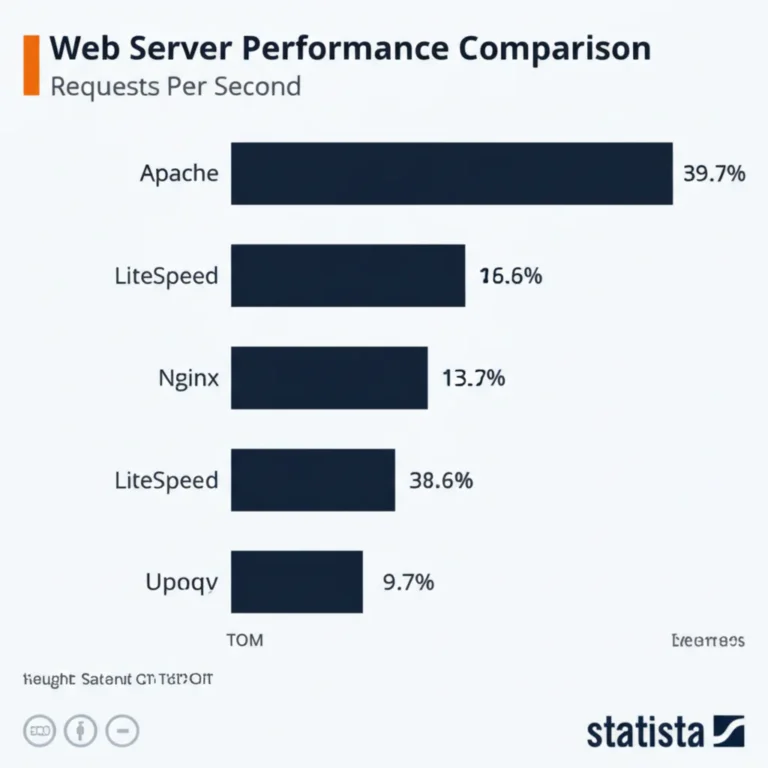
- Web Server Software: Apache, NGINX, and LiteSpeed
- Database Performance and Query Optimization
- Caching Layers and Content Delivery Networks
- Software Configuration and Code Quality
- 🏆 Choosing a Fast Web Host Based on CPU and RAM Resources
- What to Look for in a Hosting Provider
- Questions to Ask About CPU Cores and RAM Limits
- Burstable vs. Dedicated CPU Resources
- Transparent Resource Policies and Fair-Use Limits
- When to Upgrade, Migrate, or Change Hosting Providers
- ✅ Common CPU and RAM Allocation Mistakes
- Buying More RAM Without Fixing a CPU Bottleneck
- Adding CPU Cores Without Enough Memory
- Ignoring Hosting Overselling and Throttling Policies
- Confusing Marketing Specifications with Guaranteed Resources
- Skipping Monitoring After a Server Upgrade
- 🔐 Security, Reliability, and Resource Availability
- How Malware and Attacks Consume CPU and RAM
- Firewalls, Rate Limiting, and DoS Protection
- Backups, Redundancy, and Disaster Recovery
- Uptime Guarantes and Resource Reliability
- 🌱 Energy Efficiency and Sustainable Server Resources
- Efficient Hardware and Data Center Operations
- Balancing Performance, Capacity, and Power Consumption
- 📈 Scaling CPU and RAM as Your Website Grows
- Vertical Scaling: Adding Resources to One Server
- Horizontal Scaling: Distributing Traffic Across Servers
- Auto-Scaling, Load Balancing, and Cloud Migration
- Planning Resources for Seasonal and Viral Traffic
- 🧾 Real-World Hosting Scenarios and Resource Recommendations
- A Small WordPress Blog with Modest Traffic
- A Growing Business Website with Lead Forms
- A WooCommerce Store During a Sales Campaign
- A Content Platform Experiencing Viral Traffic
- A Real-Time Web Application with Persistent Connections
- ❓ FAQ: RAM, CPU Allocation, and Web Hosting Speed
- Does More RAM Make a Website Faster?
- Does More CPU Make a Website Faster?
- How Much RAM Is Enough for WordPress Hosting?
- How Many CPU Cores Does a Website Need?
- Is CPU or RAM More Important for an Online Store?
- Can a CDN Replace Additional CPU and RAM?
- Why Is My Website Slow Even When CPU and RAM Usage Looks Low?
- When Should I Upgrade My Hosting Plan?
- 🎯 Conclusion
- 🔗 Recommended Links
- ❓ FAQ
- 📚 Reference Links
Quick Tips and Facts: RAM, CPU, and Website Speed
For a practical starting point, our fastest web hosting guide explains why server resources matter, but also why more hardware alone does not automatically create a faster website. CPU and RAM are the kitchen crew of your hosting server: the CPU cooks instructions, while RAM keeps the ingredients within reach. If the recipe is badly written, hiring four more chefs may simply create a louder kitchen. 🍳
The short version
- CPU allocation determines how quickly your server executes PHP, database queries, application code, security checks, and other workloads.
- RAM allocation determines how much active code, database data, cached content, and concurrent process information can remain readily available.
- CPU and RAM work together, but they are not the only speed factors. Storage I/O, database design, caching, network latency, web server software, and application code can be just as influential.
- More resources help most when your site is resource-constrained. If your site is already waiting on a slow database query or oversized images, upgrading the server may barely move the needle.
- Shared hosting can be perfectly fast for a modest website, while a badly configured VPS can be slower than a well-managed shared plan.
- Traffic concurrency matters more than visitor totals alone. A site with 100,000 monthly visitors spread evenly may need fewer resources than one with 10,000 visitors arriving during a product launch.
- Memory pressure is particularly dangerous. Once a server starts swapping to storage or killing processes, page speed can turn into page roulette. 🎰
- CPU percentage needs context. A sustained 90% load may indicate a bottleneck, but a brief spike during a scheduled backup may be harmless.
- Caching often delivers a bigger speed improvement than a hardware upgrade, because it prevents repeated PHP execution and database work.
- A fast hosting plan cannot rescue inefficient code, bloated plugins, unoptimized images, or malware-generated traffic.
Quick fact table
| Resource or factor | Primary job | Typical performance symptom when constrained | First response |
|---|---|---|---|
| CPU | Executes instructions and processes requests | High server response time, queued PHP workers, slow dynamic pages | Profile code, reduce plugin workload, increase CPU allocation |
| RAM | Holds active processes, cache, and working data | Memory errors, crashes, swap usage, inconsistent response times | Reduce processes, optimize queries, add memory |
| Disk I/O | Reads and writes files, databases, logs, and backups | Slow queries, timeouts, high I/O wait | Use SSD/NVMe, tune database, reduce unnecessary writes |
| Database | Stores and retrieves application data | Slow search, checkout, admin, and personalized pages | Add indexes, optimize queries, remove stale data |
| Network | Moves data between server and visitor | Slow transfer despite fast server processing | Use CDN, reduce payloads, choose a closer data center |
| Caching | Reuses previously generated content | Repeated CPU and database work | Enable page, object, opcode, and browser caching |
| Application code | Determines how efficiently requests are handled | High CPU, memory leaks, long execution times | Update, profile, replace inefficient components |
The first puzzle is therefore not “How many CPU cores should you buy?” It is “Which part of the request is actually waiting?” We will return to that question when we examine bottleneck diagnosis, because guessing can produce an expensive server upgrade with the speed improvement of a sleepy tortoise. 🐢
RAM vs. CPU: What Each Server Resource Actually Does
A web request may appear simple: someone opens a URL, the server sends back a page, and everyone goes home happy. Underneath, the server may authenticate a user, execute PHP or Node.js code, query a database, load a template, check permissions, generate HTML, compress the response, and log the request.
The MDN explanation of server-side website programming provides useful context: server-side code runs on the server before the result reaches the browser. That processing is where CPU and RAM begin earning their keep.
How CPU Cores, Clock Speed, and Processing Threads Affect Hosting Performance
The CPU executes instructions. In hosting, those instructions may include:
- Running PHP, Python, Ruby, Java, Node.js, or other application code
- Parsing requests and routing them to the correct application
- Running WordPress plugins and themes
- Processing database operations
- Encrypting HTTPS traffic
- Compressing files
- Generating images or thumbnails
- Running malware scans, backups, and scheduled jobs
CPU cores and concurrency
A CPU core can work on a stream of instructions. More cores allow more work to happen concurrently, particularly when:
- Multiple visitors request dynamic pages simultaneously
- Background jobs run while visitors browse
- The application supports parallel workers
- Image processing or data tasks can be distributed
- Database and web server processes operate at the same time
However, more cores do not guarantee a faster single request. Some operations are sequential or limited by one process. A single poorly optimized database query may remain slow on a server with many idle cores.
| CPU specification | What it tells you | What it does not tell you |
|---|---|---|
| Core count | Potential parallel workload capacity | Actual per-core speed or guaranteed availability |
| Clock speed | Approximate frequency at which instructions are processed | Real-world performance across different CPU architectures |
| CPU generation | Efficiency and instruction improvements | How much of the host’s CPU is dedicated to your account |
| vCPU count | Virtual processing capacity assigned by a provider | Whether those vCPUs are dedicated, shared, or throttled |
| CPU limit | Maximum percentage or processing time available | Whether your application is efficient |
| CPU steal time | Time waiting for the hypervisor to provide CPU | Total CPU capacity on the physical machine |
A hosting company advertising “8 vCPUs” may be describing eight virtual execution threads on a shared physical system. That can be useful, but it is not necessarily equivalent to eight dedicated modern physical cores.
Clock speed is useful, but not a complete buying guide
Clock speed is measured in gigahertz, yet comparing GHz alone is like judging cars by the number printed on the dashboard. CPU architecture, cache, thermal limits, virtualization overhead, and workload design all matter.
For a WordPress site, strong per-core performance can be especially valuable for PHP requests that do not parallelize efficiently. For a build pipeline, media-processing service, or application with many workers, additional cores may matter more.
The Linux kernel documentation on CPU scheduling illustrates the broader point: operating systems must schedule competing work across available processors. Hosting performance depends not only on how much CPU exists, but on how the platform schedules and limits it.
How RAM Capacity, Memory Bandwidth, and Available Headroom Affect Speed
RAM is active working space, not permanent storage. It holds:
- Running application processes
- PHP workers and their loaded libraries
- Database buffers and query results
- Operating-system caches
- Object-cache entries
- Web server processes
- Control panels and monitoring services
- Temporary files and session data
The Red Hat guide to memory management explains why available memory affects system behavior: systems use memory to keep active information accessible, while pressure can force less efficient behavior.
Why insufficient RAM causes cascading slowdowns
When a server runs short of memory, several things may happen:
- The operating system reclaims caches.
- Processes compete for a smaller working set.
- The server writes memory pages to swap.
- Storage I/O rises.
- Processes wait longer for data.
- Requests time out or are terminated.
- Visitors see errors, blank pages, or slow responses.
Swap is not “extra RAM.” It is an emergency pressure valve using storage, which is far slower than physical memory. A small amount of occasional swap activity may not be catastrophic, but sustained swapping is a major warning sign.
RAM headroom matters
A server operating at 98% memory utilization has very little room for:
- A sudden traffic spike
- A plugin update
- A backup process
- A database query returning a larger result
- A temporary cache rebuild
- A security scan
We prefer measured headroom over maximum utilization. The correct reserve varies by operating system, application, traffic pattern, and provider architecture, but a server that is permanently one surprise away from an out-of-memory event is not comfortably sized.
CPU vs. RAM Bottlenecks: Which Resource Is Slowing Your Website?
Here is a practical distinction:
- CPU bottleneck: The server has enough memory, but instructions are taking too long or too many requests compete for processing time.
- RAM bottleneck: Active processes and data exceed available memory, triggering reclaim, swap, failed allocations, or process termination.
- I/O bottleneck: CPU and RAM may appear acceptable, but the server waits on storage operations.
- Application bottleneck: A single plugin, query, API call, or code path dominates response time.
- Network bottleneck: The origin responds quickly, but files take too long to reach the visitor.
| Observation | More likely explanation | What to verify |
|---|---|---|
| CPU stays high during every dynamic request | CPU saturation or inefficient code | Per-process CPU, PHP slow logs, application profiling |
| Memory rises and never returns | Memory leak or growing cache/process set | Process memory, PHP workers, database memory |
| Swap rises during traffic peaks | Insufficient RAM or oversized workers | Swap activity, OM logs, process limits |
| CPU is low but TFB is high | I/O, network, database, or external API delay | I/O wait, query time, upstream timing |
| Static pages are fast but checkout is slow | Dynamic application or database bottleneck | Query logs, PHP workers, session handling |
| Pages slow only when backups run | Resource contention | Scheduled tasks, disk I/O, backup configuration |
| Low server usage but poor mobile scores | Front-end payload or rendering issue | JavaScript, images, CSS, Core Web Vitals |
This is why the advice from Mokohost’s resource-limits guide is valuable: CPU, RAM, and I/O “don’t operate in isolation.” We agree. A CPU chart without memory and I/O context is like diagnosing a car by listening only to the horn.
The Evolution of Server Resources and Web Hosting Performance
From Shared Servers to Cloud Infrastructure and Dedicated CPU Allocation
Early web hosting often meant placing many websites one physical server and sharing its processor, memory, storage, and network connection. That model remains common because it is operationaly efficient and convenient for smaller sites.
Over time, providers added:
- Virtual private servers
- Hypervisors and virtual CPUs
- SSD and NVMe storage
- Container platforms
- Managed application hosting
- Cloud load balancing
- Auto-scaling infrastructure
- Dedicated CPU and memory tiers
The NIST definition of cloud computing describes cloud services through characteristics such as resource pooling, rapid elasticity, and measured service. Those concepts help explain why cloud hosting can respond more flexibly to changing demand than a fixed single-server environment.
Shared hosting: efficient, but neighbors matter
In shared hosting, customers share a physical server and often share pools of:
- CPU time
- RAM
- Disk I/O
- Network capacity
- Web server workers
- Database resources
Modern hosts commonly use process limits, account isolation, and resource throttling to prevent one customer from overwhelming everyone else. Still, shared resources mean performance can vary if many accounts experience demand simultaneously.
The trade-off is straightforward:
| Shared hosting benefit | Shared hosting drawback |
|---|---|
| Simple administration | Less control over server settings |
| Provider-managed updates | Resource limits can be strict |
| Suitable for modest websites | Neighbor activity may affect capacity |
| Easy control-panel workflows | CPU and RAM may be burstable rather than guaranteed |
| Convenient migration path | Scaling may require a plan or platform move |
VPS and dedicated resources
A VPS typically provides an isolated virtual environment with defined resources and root-level or near-root-level control. The important question is whether CPU is:
- Shared and burstable
- Guaranteed for a baseline amount
- Dedicated to the virtual machine
- Limited by quotas or cgroups
- Subject to host-level contention
A dedicated server assigns the physical machine to one customer. That removes noisy-neighbor competition, but it also places more responsibility on the owner unless the server is managed.
Why Modern Websites Need More Compute and Memory
A simple brochure page may be mostly static HTML, CSS, and compressed images. A modern application may add:
- Personalization
- Search and filtering
- Customer accounts
- Payment processing
- Inventory synchronization
- Analytics scripts
- Recommendation engines
- Real-time notifications
- API integrations
- Media conversion
- Security scanning
Every added feature can increase CPU, RAM, database, and network requirements. The most demanding page is often not the homepage; it may be the admin dashboard, search results, checkout, or logged-in account area.
This is also why a static website hosted on Cloudflare Pages or another edge-oriented platform can remain fast with minimal origin-server resources, while a dynamic WooCommerce store needs a much more careful resource plan.
How RAM and CPU Allocation Influences Web Hosting Speed

Server Response Time, Time to First Byte, and Core Web Vitals
Hosting resources most directly affect the time between a browser request and the server’s first meaningful response. This is often measured as Time to First Byte (TTFB).
Google’s Core Web Vitals documentation focuses on user-centric performance measurements, including:
- Largest Contentful Paint (LCP): How quickly the main content appears
- Interaction to Next Paint (INP): How responsive the page feels after interaction
- Cumulative Layout Shift (CLS): How stable the layout remains
CPU and RAM can influence LCP and TFB, particularly for dynamic pages. But they do not control every part of the visitor experience. A page may have excellent server response time and still perform poorly because it ships 4 MB of JavaScript and an image the size of a small moon.
A simplified request timeline
Visitor request
 │
 ▼
DNS and network connection
 │
 ▼
Web server receives request
 │
 ▼
Application code executes ─ CPU + RAM
 │
 ▼
Database or cache lookup ─ RAM + I/O
 │
 ▼
HTML response generated
 │
 ▼
Browser downloads assets ─ network + CDN
 │
 ▼
Browser parses and renders ─ visitor device CPU
``

A server upgrade only improves the stages influenced by server resources. It cannot directly fix a slow DNS provider, a distant data center, a massive image, or a browser overloaded by JavaScript.

### Dynamic PHP Requests, Database Queries, and Application Processing

Dynamic requests are where CPU and RAM tend to matter most. Consider a WordPress product page:

1. NGINX, Apache, or LiteSpeed receives the request.
2. The server checks page-cache rules.
3. If no cached copy exists, PHP starts or assigns a worker.
4. WordPress loads core files and plugins.
5. The theme builds the page structure.
6. Plugins issue database queries.
7. The database reads and returns records.
8. PHP assembles HTML.
9. The server compresses and sends the response.
10. The browser requests CSS, JavaScript, fonts, and images.

Every uncached request may consume CPU time and memory. A large plugin stack can increase both the number of instructions and the amount of code loaded into each worker.

#### Database work can become the hidden CPU and RAM consumer

Common examples include:

- Product searches without suitable indexes
- Reporting queries scanning large tables
- WordPress metadata queries
- WooCommerce order lookups
- Filtering by multiple attributes
- Repeated API calls
- Sessions stored inefficiently
- Autoloaded options that have grown excessively

A faster CPU may reduce query execution time, but **query optimization often wins more decisively**. Removing an unnecessary table scan helps every hosting plan, not just the upgraded one.

### Static Content Delivery, Caching, and Resource Allocation

Caching changes the workload. Instead of generating the same page repeatedly, the server can reuse a stored response.

Useful caching layers include:

- **Browser caching:** Stores static assets on the visitor’s device.
- **CDN caching:** Serves files from an edge location near the visitor.
- **Full-page caching:** Stores generated HTML for anonymous visitors.
- **Object caching:** Retains database results in memory.
- **Opcode caching:** Stores compiled PHP instructions.
- **Reverse-proxy caching:** Responds before the application process runs.

The [WordPress performance handbook](https://make.wordpress.org/hosting/handbook/performance/) emphasizes performance practices across the hosting stack rather than relying one resource. That matches our testing experience: a well-cached website on modest hardware can beat an uncached site on a much larger server.

### Traffic Spikes, Concurrent Visitors, and Server Load

Monthly visitors are a blunt measurement. The server cares about:

- Requests per second
- Concurrent PHP workers
- Cache hit rate
- Database activity per request
- Average request duration
- Peak traffic timing
- Background jobs running at the same time

Imagine two sites, each receiving 30,000 visits per month:

| Site | Traffic pattern | Resource implication |
|---|---|---|
| Recipe blog | Visitors spread evenly, pages cached | Modest CPU and RAM demand |
| Ticketing site | Thousands arrive during a ten-minute release | High concurrency and burst capacity required |

A CPU allocation that feels generous during quiet periods may collapse during a launch. RAM is equally important because each active worker consumes memory. If the server can run only ten workers safely, the eleventh request waits, regardless of how many CPU cores are advertised.

---

## How Hosting Environments Allocate CPU and RAM

### Shared Hosting Resource Limits and Neighbor Effects

Shared hosting plans often use account-level limits such as:

- CPU percentage
- Physical memory
- Entry processes
- Concurrent processes
- I/O throughput
- Inode count
- Database limits
- Number of PHP workers

cPanel-based hosts may expose resource graphs through CloudLinux tools, while managed WordPress providers often present simpler dashboards. The terminology varies, so ask the host whether limits are **hard caps, soft thresholds, or burst allowances**.

#### Shared hosting is not automatically slow

A small business website with:

- A lightweight theme
- Page caching
- Optimized images
- Few plugins
- Moderate traffic
- A clean database

may perform extremely well on shared hosting. The provider’s web server stack and account isolation can matter more than the label “shared.”

#### Where shared hosting struggles

Shared hosting becomes less comfortable when you need:

- Consistent high concurrency
- Custom server modules
- Long-running processes
- Large imports
- Frequent background jobs
- Advanced database tuning
- Predictable dedicated CPU
- Heavy real-time features

### Managed WordPress Hosting and Application-Level Optimization

Managed WordPress providers often optimize:

- PHP versions
- WordPress caching
- Object caching
- Database configuration
- CDN integration
- Automatic updates
- Security controls
- Backup schedules

Brands such as [Kinsta](https://kinsta.com/), [WP Engine](https://wpengine.com/), and [Cloudways](https://www.cloudways.com/) approach resource allocation differently, so compare the technical limits rather than trusting the plan name. Some emphasize visits, others PHP workers, bandwidth, storage, or application containers.

A managed platform may deliver faster real-world performance with fewer visible CPU cores because it reduces administrative friction and applies sensible defaults. On the other hand, advanced users may prefer a VPS for deeper tuning.

### VPS Hosting: Dedicated Resources with Flexible Configuration

A VPS can offer:

- Assigned RAM
- Configurable CPU allocation
- Root access
- Custom web server software
- Dedicated IP options
- Tunable database settings
- More predictable performance

The trade-off is management responsibility. You may need to configure:

- Firewall rules
- Updates
- PHP-FPM workers
- Database memory
- Log rotation
- Backups
- Monitoring
- Intrusion detection

Providers such as [DigitalOcean](https://www.digitalocean.com/), [Linode](https://www.linode.com/), and [Vultr](https://www.vultr.com/) are popular with technically comfortable users, while managed VPS providers handle more of the operational workload.

### Cloud Hosting: Scalable CPU and Memory Allocation

Cloud platforms can offer:

- Vertical scaling
- Horizontal scaling
- Load balancing
- Managed databases
- Object storage
- Auto-scaling
- Regional deployment
- High availability options

However, “cloud” is not a synonym for “fast.” A small cloud instance with poor database configuration may be slower than a strong VPS. Cloud benefits become more meaningful when your application needs elasticity, redundancy, or distributed services.

Explore our [Cloud Hosting category](https://fastestwebhosting.org/category/cloud-hosting/) for comparisons of platforms and use cases.

### Dedicated Servers: Maximum Control and Consistent Performance

Dedicated servers provide the clearest resource boundary:

- Full physical CPU access
- Large memory capacity
- Predictable disk performance
- Custom operating-system configuration
- High concurrency potential
- Strong isolation from other customers

But dedicated hosting can be wasteful for a lightly used website. You also need the expertise to manage the environment, or you need a managed-service agreement.

Brands including [Liquid Web](https://www.liquidweb.com/), [OVHcloud](https://www.ovhcloud.com/), and [Hetzner](https://www.hetzner.com/) offer dedicated infrastructure in different markets and service models. Always check data-center location, support scope, hardware generation, backup policy, and network capacity.

### Containerized Hosting, Virtual CPUs, and Memory Limits

Containers package applications and dependencies while sharing the host kernel. They are efficient, but resource limits may be strict.

A container can be limited by:

- CPU shares
- CPU quotas
- Memory limits
- Process counts
- Ephemeral storage
- Network policies

If a container reaches its memory limit, the platform may terminate it even when the physical server has unused RAM. The relevant measurement is therefore **your assigned limit and observed behavior**, not the host machine’s total capacity.

---

## 9 Key Ways CPU and RAM Allocation Improve Website Performance

### 1. Faster Server-Side Request Processing

Additional CPU capacity can reduce queueing when multiple dynamic requests arrive together. More RAM can keep application code, database buffers, and active workers available without repeated storage access.

This helps most when:

- TFB rises during traffic peaks
- PHP workers remain busy
- CPU is consistently saturated
- Requests are dynamic rather than cached

It helps less when the visitor is waiting for a remote API or a huge image.

### 2. More Efficient Database Operations

RAM allows databases to cache frequently accessed data and indexes. CPU executes query logic and sorting. Together, they can reduce repeated disk reads and shorten query execution.

But the winning order is usually:

1. Identify slow queries.
2. Add or correct indexes.
3. Remove unnecessary queries.
4. Reduce returned data.
5. Enable object caching.
6. Add RAM or CPU if demand still exceeds capacity.

Throwing hardware at an unindexed query is like widening a motorway while leaving a piano in the middle lane.

### 3. Better Object Caching and Page Caching

Object caching stores reusable data in memory. Full-page caching stores generated HTML. Both reduce application work.

Tools may include:

- Redis
- Memcached
- LiteSpeed Cache
- Varnish
- NGINX FastCGI cache
- WP Rocket
- W3 Total Cache

Redis provides an official overview of its in-memory data-store capabilities in its [documentation](https://redis.io/docs/latest/develop/get-started/). The key point is simple: data served from memory usually avoids repeated database and storage work.

### 4. Improved Performance During Traffic Surges

Extra resources create breathing room when demand jumps. This can prevent:

- PHP worker queues
- 502 and 503 errors
- Database connection exhaustion
- Memory exhaustion
- Severe TFB increases
- Control-panel lockups

Still, scaling should be paired with caching and rate limiting. Otherwise, bots or an abusive endpoint may consume your new capacity just as quickly as the old capacity.

### 5. Smother Content Management System Administration

WordPress dashboards, site builders, plugin updates, imports, and media libraries can be more demanding than the public website.

Additional resources improve:

- Bulk editing
- Product imports
- Image generation
- Search indexing
- Plugin updates
- Database cleanup
- Backup compression

This explains why a site may feel fast to visitors but painfully slow to its administrator.

### 6. Faster E-Commerce Transactions and Checkout Requests

Checkout requests are dynamic and often uncached. They may involve:

- Cart sessions
- Inventory checks
- Tax calculations
- Shipping APIs
- Payment gateways
- Fraud checks
- Order creation
- Confirmation emails

CPU and RAM can improve the application side, but third-party payment and shipping APIs may remain the slowest link. Never cache personalized checkout responses indiscriminately; speed should not come at the cost of showing one shopper another shopper’s cart. 🛒

### 7. More Reliable Background Jobs and Cron Tasks

Scheduled tasks can compete with visitors. Examples include:

- WordPress cron events
- Search indexing
- Product synchronization
- Email queues
- Backups
- Security scans
- Log processing

Move heavy jobs to quieter periods, stagger them, or use a real system cron where appropriate. The [WordPress Cron handbook](https://developer.wordpress.org/plugins/cron/) explains how scheduled events work and why they should be managed carefully.

### 8. Quicker Image Processing, Backups, and Security Scans

Image resizing and backup compression can be CPU-intensive. Encryption and malware scanning can also consume processor time and memory.

A well-sized server can perform these tasks without making every visitor wait. Yet offloading images to a CDN or using asynchronous processing may be more efficient than simply adding cores.

### 9. Greater Stability for High-Concurrency Applications

Applications with many simultaneous sessions benefit from enough memory for active workers and enough CPU to process them.

Common examples include:

- Forums
- Learning platforms
- Membership sites
- Booking systems
- SaaS dashboards
- Live chat
- Real-time notifications

The requirement is not just “more horsepower.” It is **predictable concurrency**, which includes process limits, database connections, socket capacity, and application architecture.

---

## How Much RAM and CPU Does Your Website Need?

There is no universal specification because resource needs depend on workload, not website category alone. A static portfolio and a plugin-heavy portfolio may have entirely different requirements.

### Resource Guidelines for Blogs and Personal Websites

A lightweight blog with page caching can often begin on shared hosting. Focus on:

- Reliable page caching
- SSD or NVMe storage
- Current PHP version
- CDN support
- Automatic backups
- Resource monitoring
- A clear upgrade path

A blog with frequent search, comments, membership features, or large media libraries may need more memory and CPU sooner.

### Resource Guidelines for Business Websites and Portfolios

A brochure-style company website usually prioritizes:

- Fast static asset delivery
- Low TFB
- Secure forms
- Image optimization
- Uptime
- Backups
- Malware protection

CPU and RAM demands may be modest, but contact forms, analytics, booking systems, and CRM integrations can add dynamic work.

### Resource Guidelines for WordPress Websites

WordPress resource use varies dramatically. A lean installation with a lightweight theme may run comfortably with modest allocation. A site using page builders, multilingual plugins, WooCommerce, search, analytics, and visual effects needs considerably more headroom.

Audit:

- Number of active plugins
- PHP worker count
- Average PHP memory per request
- Autoloaded database options
- Cron frequency
- Cache hit ratio
- Admin-side workload
- Peak concurrent visitors

### Resource Guidelines for Online Stores and WooCommerce

WooCommerce commonly needs more reliable resources because:

- Product pages may be dynamic
- Cart and checkout pages cannot be fully cached
- Inventory and order data change constantly
- Filters and searches can generate complex queries
- Payment and shipping integrations add external calls

For an online store, prioritize:

1. Strong per-core CPU performance.
2. Sufficient RAM for PHP workers and database buffers.
3. Fast SSD/NVMe storage.
4. Object caching.
5. Database monitoring.
6. CDN delivery for static assets.
7. Scalable hosting for campaigns.

### Resource Guidelines for Membership Sites, Forums, and Web Applications

Logged-in experiences reduce full-page-cache effectiveness. Each request may be personalized, increasing CPU and memory requirements.

Plan around:

- Concurrent logged-in users
- Session storage
- Notifications
- Search
- Uploads
- API activity
- Database writes
- Background jobs

### Resource Guidelines for News, Media, and High-Traffic Websites

Media websites often serve enormous static traffic but generate high origin demand during breaking news or viral events.

Use:

- CDN caching
- Image resizing and modern formats
- Edge caching
- Queue-based publishing tasks
- Separate media storage
- Load balancing when needed
- Autoscaling or burst capacity

### Practical starting framework

Use this sequence rather than copying a generic “RAM per visitor” rule:

1. **Classify the workload:** static, dynamic, transactional, or real-time.
2. **Measure peak concurrency:** not only monthly visitors.
3. **Record TFB and error rates:** before changing hosting.
4. **Inspect CPU, RAM, I/O, and database metrics together.**
5. **Optimize obvious waste.**
6. **Add headroom for growth and maintenance tasks.**
7. **Re-test under realistic concurrency.**

DoHost’s competing guidance suggests a small blog may begin around **1–2 CPU cores and 2–4 GB RAM**, while an e-commerce site may need **multiple cores and 8 GB or more**. Those figures can be useful starting points, not laws of physics. A heavily cached store may need less; a poorly optimized store may need more.

---

## CPU and RAM Allocation by Hosting Type

### Shared Hosting Resource Comparison

| Hosting environment | CPU allocation | RAM allocation | Control | Best fit | Main risk |
|---|---|---|---|---|---|
| Entry shared hosting | Shared and limited | Shared and limited | Low | Small static or modest CMS sites | Throttling during peaks |
| Premium shared hosting | Shared with stronger limits | More generous account limits | Low to medium | Growing business sites | Still not fully isolated |
| Managed WordPress | Platform-specific | Platform-specific | Medium | WordPress users wanting managed tuning | Provider-specific restrictions |
| VPS | Assigned virtual CPU | Assigned memory | High | Growing dynamic sites | Requires administration unless managed |
| Cloud VPS | Flexible or scalable | Flexible or scalable | High | Variable traffic and distributed apps | Complexity and configuration |
| Dedicated server | Physical CPU access | Physical memory access | Very high | High traffic and demanding apps | Cost and management overhead |

For measured results, review our [Hosting Speed Test Results](https://fastestwebhosting.org/category/hosting-speed-test-results/) rather than relying only on advertised core counts. Benchmarks should be interpreted alongside location, caching, software versions, and test methodology.

### VPS Hosting Resource Comparison

When comparing VPS plans, ask:

- Are CPU cores dedicated or shared?
- Is the storage SSD or NVMe?
- What is the CPU generation?
- Is RAM guaranteed?
- Is swap enabled and how is it configured?
- Is network bandwidth capped?
- Are backups separate from the VPS?
- Is management included?
- Can resources be upgraded without migration?
- What monitoring does the provider offer?

A VPS with fewer but newer dedicated cores can outperform a larger, oversubscribed virtual machine.

### Cloud Hosting Resource Comparison

Cloud hosting adds flexibility, but evaluate:

- Scaling speed
- Minimum and maximum instance size
- Database placement
- Load-balancer capacity
- Storage performance
- Regional availability
- Network egress policies
- Auto-scaling triggers
- Failover design

A cloud instance is not automatically fault tolerant. High availability must be designed across instances, zones, databases, and storage.

### Dedicated Hosting Resource Comparison

Dedicated hosting is strongest when resource demand is consistently high. It may be excessive when:

- Traffic is modest
- The site is mostly cached
- The application is inefficient
- You lack server-management expertise
- A managed platform would solve the actual bottleneck

Our reviewers have seen businesses move from shared hosting to dedicated servers and gain little because the real problem was a bloated page builder and unindexed database table. The server became larger; the page did not become wiser.

---

## How to Identify a CPU or RAM Bottleneck

### Symptoms of CPU Saturation

Look for:

- Sustained high CPU usage
- Long PHP execution times
- Requests waiting in a queue
- Slow admin actions during traffic
- High load averages
- CPU spikes linked to one process
- Slow response despite adequate free memory

Use process-level metrics when possible. A total CPU chart can hide the fact that one plugin, backup task, or malware process is consuming the available capacity.

### Symptoms of Memory Exhaustion

Warning signs include:

- “Allowed memory size exhausted”
- Out-of-memory-killer entries
- Suden process termination
- PHP workers disappearing
- Database restarts
- Rising swap usage
- Large variations in response time
- 500 and 503 errors during traffic peaks

The [Linux kernel documentation on the out-of-memory killer](https://docs.kernel.org/mm/oom.html) explains the system’s response when memory cannot be allocated safely.

### Swap Usage, Disk Thrashing, and Out-of-Memory Errors

Check:

- Total RAM
- Available RAM
- Swap used
- Swap-in and swap-out activity
- Major page faults
- I/O wait
- Process memory growth

A server may report plenty of “free” memory because the operating system uses idle memory for cache. Focus on available memory, reclaim pressure, and swap activity rather than one simplistic percentage.

### Load Average, CPU Steal Time, and Resource Throttling

On Linux, load average reflects tasks waiting for CPU or uninterruptible resources such as storage. It must be compared with the number of available CPU cores.

A load average of 4 may be:

- High on a one-core server
- Moderate on a four-core server
- Low on a sixteen-core server

**CPU steal time** is especially useful on virtual machines. It indicates time when the guest wanted CPU but the hypervisor assigned it elsewhere. High steal time can point to host contention, even when your own process usage seems modest.

### Distinguishing Resource Problems from Network and Disk I/O Issues

A slow site with low CPU usage is not a contradiction. It may be waiting on:

- Database storage
- Remote APIs
- DNS
- TLS negotiation
- Network transfer
- Slow filesystem operations
- CDN cache misses
- A locked database table

Use waterfall tools, server timing headers, slow logs, and application traces to separate these causes.

---

## Tools for Monitoring Server CPU, RAM, and Hosting Speed

### Hosting Control Panel Resource Dashboards

Depending on the platform, you may see:

- CPU usage
- Memory usage
- Entry processes
- I/O usage
- Number of faults
- PHP workers
- Database usage
- Bandwidth
- Cron activity

Screenshots and labels vary, so ask support what each metric means. “CPU limit reached” may mean a short burst exceeded a threshold, not that the server was permanently overloaded.

### Linux Commands for CPU and Memory Monitoring

On a managed VPS or dedicated server, useful commands include:

```bash
uptime
free -h
top
htop
vmstat 1
iostat -xz 1
df -h
ps aux --sort=-%cpu
ps aux --sort=-%mem
``

Interpret them carefully:

- `uptime` shows load averages.
- `free -h` summarizes memory and swap.
- `top` and `htop` show active processes.
- `vmstat` reveals memory, swap, and run-queue behavior.
- `iostat` helps identify storage waits.
- `df -h` checks filesystem capacity.
- `ps` identifies process-level CPU or memory consumers.

Never run unfamiliar commands copied from a random forum on a production server without understanding what they do. The fastest route to a performance incident is often a “quick fix” pasted at 2 a.m. 🌙

### Website Speed Testing Tools and Performance Reports

Use multiple tools because each measures something different:

- [Google PageSpeed Insights](https://pagespeed.web.dev/)
- [WebPageTest](https://newdev.webpagetest.org/)
- [GTmetrix](https://gtmetrix.com/)
- [Chrome DevTools Performance panel](https://developer.chrome.com/docs/devtools/performance/)
- [Pingdom Website Speed Test](https://tools.pingdom.com/)

Record:

- Test location
- Device type
- Browser
- Cache state
- Connection speed
- TFB
- LCP
- INP
- CLS
- Total page weight
- Number of requests

### Application Performance Monitoring and Server Logs

Look at:

- Web server access logs
- PHP slow logs
- PHP-FPM status
- Database slow-query logs
- Cron logs
- Firewall events
- Error logs
- CDN analytics
- APM traces

For WordPress, tools such as Query Monitor can expose slow queries and hooks in development or carefully controlled production troubleshooting. Do not leave heavy debugging enabled indefinitely on a busy public site.

### Security Verification and Server Health Checks That Protect Performance

Security challenges can reduce automated abuse, but they can also add processing and user friction. A verification page from a provider may indicate that automated access was blocked, not that the website itself is slow.

We recommend checking:

- Bot request volume
- Repeated login attempts
- XML-RPC abuse
- Vulnerable plugins
- Unexpected cron jobs
- Large outbound traffic
- New admin accounts
- CPU-heavy unknown processes

The [OWASP Top 10](https://owasp.org/www-project-top-ten/) is a useful starting point for application-security risks that can indirectly become resource problems.

---

## 11 Practical Ways to Optimize CPU and RAM Usage

### 1. Enable Full-Page and Object Caching

Start with:

1. Identify anonymous pages suitable for caching.
2. Configure page-cache rules.
3. Exclude carts, checkout, accounts, and personalized content.
4. Add object caching for repeated database data.
5. Enable opcode caching where supported.
6. Purge cache after content changes.
7. Verify cache hits using headers and logs.

Caching is not a one-click spell. Incorrect rules can show stale content or private data to the wrong visitor.

### 2. Optimize Database Tables and Queries

Steps:

1. Back up the database.
2. Identify slow queries.
3. Check missing indexes.
4. Remove expired transients and unused data.
5. Reduce oversized autoloaded options.
6. Avoid selecting unnecessary columns.
7. Retest query time under realistic load.

Database cleanup should be measured, not performed with a giant “optimize everything” button and crossed fingers.

### 3. Remove Unused Plugins, Themes, and Extensions

Deactivate what you do not need, then remove it if safe. Review:

- Page builders
- Analytics plugins
- Related-post engines
- Security scanners
- Image processors
- Social feeds
- Backup plugins
- Duplicate caching layers

Each plugin is not inherently bad. The problem is unnecessary work, poor code, duplicate functionality, and incompatibility.

### 4. Use a Content Delivery Network

A CDN can serve static assets closer to visitors, reducing origin requests. Consider:

- Cloudflare
- Fastly
- Amazon CloudFront
- Bunny.net
- KeyCDN

A CDN does not automatically fix dynamic database processing, but it can dramatically reduce origin bandwidth, connection load, and repeated asset delivery.

### 5. Compress Images and Serve Modern File Formats

Use:

- WebP or AVIF where appropriate
- Responsive image sizes
- Lazy loading below the fold
- Proper width and height attributes
- Compression before upload
- Dedicated image transformation workflows

Oversized images create network and browser work even if the server CPU is idle. Google’s [image performance guidance](https://web.dev/learn/images) provides practical recommendations.

### 6. Configure PHP Workers and Process Limits

Too few workers create queues. Too many workers consume RAM and can cause swapping.

Tune based on:

- Average worker memory
- Available RAM
- Request duration
- Peak concurrency
- Database connection capacity
- Background process demand

A simple rule such as “set workers to the number of cores” is incomplete. Memory per worker can be the limiting factor.

### 7. Tune MySQL or MariaDB Memory Settings

Database settings should reflect:

- Available memory
- Storage engine
- Connection count
- Query pattern
- Buffer requirements
- Temporary table workload

Do not copy a configuration designed for a 64 GB dedicated server onto a small VPS. Database tuning without memory accounting can turn a performance fix into an out-of-memory event.

### 8. Schedule Backups and Cron Jobs Efficiently

Stagger:

- Backups
- Security scans
- Search indexing
- Product imports
- Image conversion
- Database cleanup
- Email processing

If a backup overlaps with peak traffic, CPU and I/O contention can make a healthy website appear broken.

### 9. Reduce Unecessary Background Processes

Audit:

- Idle daemons
- Duplicate monitoring agents
- Unused control-panel services
- Debug logging
- Abandoned queues
- Repeated API polling
- Excessive health checks

Every process consumes some memory, and some consume significant CPU or I/O.

### 10. Keep Software, Themes, and Plugins Updated

Updates can improve:

- Security
- PHP compatibility
- Query efficiency
- Memory handling
- Cache integration
- Database behavior

Test updates in staging when possible. An outdated plugin may be slow; a rushed update may be broken. Neither deserves production without verification.

### 11. Set Alerts Before Resources Reach Their Limits

Alert on:

- Sustained CPU saturation
- Low available memory
- Swap activity
- High I/O wait
- Rising error rates
- Slow TFB
- Database connection pressure
- Disk capacity
- Traffic anomalies

Early warnings give you time to optimize or scale before visitors become your monitoring system.

---

## Benchmarking Hosting Speed After a Resource Upgrade

### Create a Reliable Before-and-After Testing Plan

Before upgrading:

1. Record at least several days of normal traffic.
2. Capture peak-period metrics.
3. Save representative URLs.
4. Record cache status.
5. Note server location and software versions.
6. Measure CPU, RAM, I/O, TFB, and errors.
7. Run a controlled load test where permitted.

After upgrading, repeat the same process. Do not change hosting, theme, CDN, image sizes, and five plugins at once if you want to know what helped.

### Measure TFB, Page Load Time, and Core Web Vitals

Test:

- Homepage
- A dynamic article
- Search results
- Login
- Product page
- Cart
- Checkout
- Admin dashboard
- API endpoint

Averages can hide problems. Record median, 75th percentile, and 95th percentile response times when your monitoring system allows it.

### Test Caching, Concurrent Users, and Traffic Spikes

A single-user test may show little difference between a small and large server. That is exactly what the featured experiment found: Tony’s Linode tests across configurations from **1 GB RAM/1 CPU through 8 GB RAM/4 CPU** produced relatively small differences in single-user server response and page-load results.

That does not make CPU and RAM irrelevant. It demonstrates a crucial boundary:

- If one uncached request is lightweight, more resources may not reduce its processing time much.
- If hundreds of requests arrive together, additional capacity can reduce queueing and failures.
- If the bottleneck is front-end code, server upgrades may barely affect visual load time.

This perspective is available through the article’s [featured video](#featured-video), and it aligns with our own testing principle: **benchmark the workload you actually have, not an imaginary one-user homepage visit.**

### Avoid Misleading Hosting Benchmark Results

Beware tests that:

- Use only a cached homepage
- Run from one geographic location
- Ignore warm-up time
- Compare different software stacks
- Omit traffic concurrency
- Ignore database state
- Test a blank WordPress installation
- Report only the fastest run
- Hide provider throttling
- Use different CDN settings

A benchmark should answer a question. “Which host is fastest?” is too vague. “Which environment delivers the lowest 95th-percentile TFB for our uncached WooCommerce checkout from three target regions?” is useful.

---

## CPU and RAM Allocation vs. Other Hosting Performance Factors

### Storage Type: HDD, SSD, and NVMe

Storage affects:

- Database reads and writes
- Log operations
- Cache creation
- Backups
- Swap behavior
- File serving
- Image processing

NVMe can reduce latency compared with traditional HDD storage, but storage speed cannot compensate for an inefficient query or an overloaded CPU.

### Server Location, Network Latency, and Bandwidth

A powerful server far from your audience may deliver a slower experience than a modest server nearby. Use a CDN for geographically distributed visitors and select an origin location close to your primary audience.

### Web Server Software: Apache, NGINX, and LiteSpeed

Each stack has different strengths and configuration options:

- Apache offers broad compatibility and flexible modules.
- NGINX is efficient for static content and reverse-proxy workloads.
- LiteSpeed can provide strong WordPress performance with compatible caching tools.
- OpenLiteSpeed offers an open-source variant with different management considerations.

The [NGINX documentation](https://docs.nginx.com/) and [LiteSpeed documentation](https://docs.litespeedtech.com/) show how configuration influences request handling. Hardware matters, but software determines how effectively that hardware is used.

### Database Performance and Query Optimization

A database query can dominate TFB even when CPU and RAM usage look moderate. Prioritize:

- Indexes
- Query plans
- Connection pooling
- Cache strategy
- Table design
- Data retention
- Appropriate storage

### Caching Layers and Content Delivery Networks

Caching often gives the highest return because it reduces work rather than merely accelerating the work. A page that takes 300 milliseconds to generate but can be served from cache in 30 milliseconds benefits more from eliminating generation than from making the CPU slightly faster.

### Software Configuration and Code Quality

Code quality influences:

- CPU instructions
- Memory allocation
- Database calls
- API waits
- Response size
- Error handling

DoHost’s article correctly warns that a website can remain slow despite a capable hosting plan because of unoptimized code, oversized images, excessive plugins, or a poorly configured database. Hardware is the stage; the application is the actor delivering the performance.

---

## Choosing a Fast Web Host Based on CPU and RAM Resources

### What to Look for in a Hosting Provider

Prioritize providers that clearly explain:

- CPU allocation
- vCPU versus dedicated cores
- Memory limits
- I/O limits
- PHP worker limits
- CDN integration
- Storage type
- Data-center locations
- Upgrade process
- Monitoring tools
- Backup policy
- Support response
- Isolation technology

Browse our [Best Hosting Providers](https://fastestwebhosting.org/category/best-hosting-providers/) and [Hosting Price Comparison](https://fastestwebhosting.org/category/hosting-price-comparison/) categories, then verify technical terms directly with the provider.

### Questions to Ask About CPU Cores and RAM Limits

Send support a concise technical checklist:

1. Are CPU cores shared, burstable, or dedicated?
2. What happens when the account reaches its CPU limit?
3. Is RAM a hard cap?
4. Is swap available?
5. Are PHP workers counted separately?
6. What are the account’s I/O limits?
7. Is object caching included?
8. Can the database run on separate resources?
9. Are backups excluded from account limits?
10. Can I upgrade without changing the server or IP?
11. Do you provide historical resource graphs?
12. What is the policy for traffic spikes?

A vague answer is itself useful information. Transparent providers usually explain resource boundaries without making you perform interpretive dance.

### Burstable vs. Dedicated CPU Resources

| Resource model | Behavior | Good for | Watch out for |
|---|---|---|---|
| Burstable CPU | Can use extra capacity temporarily | Variable small-site traffic | Performance may fall during host contention |
| Shared vCPU | Competes with other workloads | General applications | Noisy neighbors and steal time |
| Guaranteed baseline | Reserved minimum with possible burst | Predictable business workloads | Read the exact guarantee |
| Dedicated CPU | Reserved physical or virtual capacity | High-concurrency applications | Higher management and infrastructure demands |

### Transparent Resource Policies and Fair-Use Limits

A host can advertise unlimited traffic or generous storage while limiting the resources that actually determine dynamic speed. Look for:

- CPU seconds
- Physical memory
- Entry processes
- I/O throughput
- Database connections
- File operations
- Worker limits

“Unlimited” is often a marketing word wearing a very small hat. 🎩

### When to Upgrade, Migrate, or Change Hosting Providers

Upgrade when:

- The bottleneck is persistent
- Optimization has been completed
- Peak traffic creates errors
- You need custom configuration
- Resource charts show repeated limits
- The application is growing predictably

Migrate when:

- Support cannot explain limits
- Performance varies wildly without traffic changes
- Backups or security scans cause outages
- The provider throttles without visibility
- The platform lacks a suitable next tier
- The data center is poorly located for your audience

---

## Common CPU and RAM Allocation Mistakes

### Buying More RAM Without Fixing a CPU Bottleneck

More memory will not make a CPU-bound application faster unless the system was also suffering from memory pressure or I/O caused by swapping.

### Adding CPU Cores Without Enough Memory

More workers can increase concurrent processing, but every worker consumes memory. If you add CPU without RAM headroom, you may create a faster route to an out-of-memory crash.

### Ignoring Hosting Overselling and Throttling Policies

Overselling is not automatically bad; shared infrastructure depends on statistical demand. The issue is **opaque or aggressive contention** that causes unpredictable performance.

### Confusing Marketing Specifications with Guaranteed Resources

“Eight cores” may mean:

- Eight shared vCPUs
- Eight hyperthreads
- Eight burstable units
- Eight cores subject to a percentage cap

Ask what is guaranteed at peak time.

### Skipping Monitoring After a Server Upgrade

An upgrade should be followed by measurement. If TFB does not improve, investigate:

- Cache status
- Database queries
- External APIs
- Network latency
- Front-end payload
- I/O wait
- Application errors

Our reviewers have seen upgrades that improved error rates but barely changed page-load scores. That is still a success if the business needed stability, but it is not evidence that every page became faster.

---

## Security, Reliability, and Resource Availability

### How Malware and Attacks Consume CPU and RAM

Malware can:

- Run unauthorized scripts
- Mine cryptocurrency
- Send spam
- Scan other systems
- Generate outbound requests
- Create hidden admin accounts
- Modify files repeatedly

Bots can also consume resources without compromising the server. Login attacks, comment spam, scraping, and endpoint abuse may create sustained CPU and database pressure.

### Firewalls, Rate Limiting, and DoS Protection

Use:

- Web application firewalls
- Login rate limiting
- Bot management
- Fail2ban where appropriate
- CDN protection
- XML-RPC controls
- API quotas
- Strong authentication
- Network-level DoS mitigation

The [Cloudflare DoS learning center](https://developers.cloudflare.com/learning-paths/prevent-ddos-attacks/concepts/ddos-attacks/) explains how distributed attacks overwhelm network and application resources. Protection should occur as far from the origin as practical.

### Backups, Redundancy, and Disaster Recovery

Backups consume CPU, RAM, disk I/O, and network capacity. Configure them so they do not compete with peak visitor traffic.

Verify:

- Backup frequency
- Off-site storage
- Restore testing
- Retention
- Encryption
- Database consistency
- Recovery time objectives

A backup that cannot be restored is a decorative file wearing a security costume.

### Uptime Guarantes and Resource Reliability

An uptime guarantee does not promise low TFB or high CPU availability. Review:

- SLA definition
- Exclusions
- Maintenance windows
- Compensation terms
- Network versus application coverage
- Resource-throttling policy

Availability and speed are related but distinct. A site can be online and painfully slow.

---

## Energy Efficiency and Sustainable Server Resources

### Efficient Hardware and Data Center Operations

Newer CPUs can process more work per watt, while efficient storage and virtualization can improve utilization. Providers may use:

- Renewable-energy sourcing
- Efficient cooling
- Power usage effectiveness monitoring
- Hardware consolidation
- Carbon reporting
- Renewable-energy certificates

Check provider sustainability claims against published environmental reports rather than relying only on green-colored website graphics.

### Balancing Performance, Capacity, and Power Consumption

Overprovisioning a tiny workload on a large dedicated server can waste resources. Underprovisioning causes retries, failures, and repeated work, which also consumes energy.

The efficient target is:

- Enough capacity for peaks
- Strong caching
- Efficient code
- Right-sized instances
- Scheduled background jobs
- Scalable architecture
- Measured utilization

---

## Scaling CPU and RAM as Your Website Grows

### Vertical Scaling: Adding Resources to One Server

Vertical scaling means increasing:

- CPU allocation
- RAM
- Storage performance
- Network capacity

It is often the simplest next step from shared hosting to VPS or from a smaller VPS to a larger one. Confirm whether scaling requires downtime, migration, or an IP change.

### Horizontal Scaling: Distributing Traffic Across Servers

Horizontal scaling adds instances and distributes requests through a load balancer. It may require:

- Shared or object storage
- Centralized sessions
- Database replication
- Cache coordination
- Stateless application design
- Health checks
- Deployment automation

It is more complex, but it can improve resilience and capacity.

### Auto-Scaling, Load Balancing, and Cloud Migration

Auto-scaling works best when:

- Traffic patterns are measurable
- Instances start quickly
- Sessions are portable
- The database can handle growth
- Scaling triggers are meaningful
- Costs are monitored

Auto-scaling a poorly optimized application can simply create more expensive copies of the same problem.

### Planning Resources for Seasonal and Viral Traffic

Prepare before the event:

1. Review last year’s peaks.
2. Test representative pages.
3. Confirm cache rules.
4. Check CDN capacity.
5. Increase resources temporarily if needed.
6. Stagger background tasks.
7. Set monitoring alerts.
8. Confirm support escalation.
9. Prepare a static fallback where possible.
10. Revert deliberately after the event.

---

## Real-World Hosting Scenarios and Resource Recommendations

### A Small WordPress Blog with Modest Traffic

Recommended approach:

- Reliable shared or managed WordPress hosting
- Page caching
- Lightweight theme
- Optimized images
- CDN
- Automatic backups
- Basic resource monitoring

More CPU and RAM may help during publishing or plugin updates, but front-end optimization usually matters more.

### A Growing Business Website with Lead Forms

Prioritize:

- Fast dynamic form handling
- Email deliverability
- Security
- Reliable database
- Low TFB
- Backup and restore testing
- Regional CDN

A modest VPS may make sense when lead volume and integrations grow, but do not ignore third-party CRM latency.

### A WooCommerce Store During a Sales Campaign

Use:

- Object caching
- Optimized database
- Sufficient PHP workers
- Fast storage
- CDN for static assets
- Scalable CPU and RAM
- Checkout testing
- Rate limiting
- Queue management

Load-test cart and checkout paths, not just the cached homepage.

### A Content Platform Experiencing Viral Traffic

Prioritize:

- CDN and edge caching
- Static fallback
- Image optimization
- Origin shielding
- Rate limiting
- Autoscaling
- Separate media storage
- Monitoring by percentile

The goal is to keep the origin from processing the same popular article thousands of times.

### A Real-Time Web Application with Persistent Connections

Plan for:

- Dedicated or predictable CPU
- Adequate RAM per connection
- Connection limits
- Event-loop efficiency
- Load balancing
- Session and state management
- Network capacity
- Horizontal scaling

Real-time applications can exhaust memory through connection count even when page views appear modest.

---

## FAQ: RAM, CPU Allocation, and Web Hosting Speed

### How much RAM does a web hosting server need for fast website performance?

The required RAM depends on the operating system, web server, application, database, traffic concurrency, caching, and background jobs. A lightweight static site may need very little application memory, while a busy WordPress or WooCommerce installation may need several gigabytes of working space.

Use this process:

1. Measure peak memory usage.
2. Include web server, PHP, database, control-panel, and monitoring overhead.
3. Check per-process memory.
4. Observe swap and out-of-memory events.
5. Add headroom for traffic spikes and maintenance.
6. Re-test after optimization.

The most useful target is not a universal number but **enough memory to avoid sustained pressure and swapping**.

#### Why RAM estimates vary so much

One provider’s “2 GB plan” may run only a small application, while another bundles a database, control panel, email services, backups, and security scanners. Hardware allocation is meaningful only when you know what else shares that allocation.

### How does CPU allocation affect web hosting speed and website load times?

CPU allocation affects how quickly the server executes application code, handles database logic, compresses responses, encrypts connections, and processes concurrent requests.

It improves speed most when:

- CPU usage is sustained
- Requests queue behind busy workers
- Dynamic pages perform expensive computation
- Multiple visitors arrive at once
- Background jobs compete with web traffic

It may have little effect when:

- Pages are already cached
- The visitor waits on a remote API
- Images are oversized
- Network latency dominates
- The database is waiting on storage
- Browser JavaScript is the main problem

CPU allocation improves the server-processing portion of the journey, not every millisecond afterward.

### Is more RAM or a faster CPU more important for choosing the fastest web hosting service?

Neither is universally more important.

Choose based on the bottleneck:

- **High CPU, healthy memory:** prioritize stronger or dedicated CPU.
- **Memory pressure or swap:** prioritize RAM.
- **High I/O wait:** prioritize faster storage and database tuning.
- **Low server usage but poor visual speed:** optimize front-end assets.
- **Traffic bursts:** prioritize concurrency, caching, and scalable resources.

For many dynamic CMS sites, a balanced configuration is safer than maximizing one component. Our preferred approach is to compare resource graphs, TFB, error rates, and realistic concurrent tests.

### What CPU resources should a high-traffic website have in a web hosting plan?

A high-traffic site needs predictable processing capacity, but visitor totals alone are insufficient. Evaluate:

- Peak requests per second
- Concurrent dynamic requests
- Cache hit rate
- PHP worker demand
- Database query time
- Background jobs
- Third-party API calls
- Traffic geography
- Required uptime

A high-cache media site may need modest origin CPU but strong CDN capacity. A personalized marketplace may need dedicated CPU, substantial RAM, fast storage, and database scaling.

### How does shared hosting CPU usage compare with VPS and dedicated hosting performance?

Shared hosting divides physical resources among multiple accounts and usually enforces account-level limits. A VPS isolates the environment and provides assigned virtual resources, but CPU may still be shared unless dedicated. Dedicated hosting assigns the physical machine to one customer.

| Environment | Predictability | Control | Typical scaling path |
|---|---:|---:|---|
| Shared | Low to moderate | Low | Premium shared or VPS |
| VPS | Moderate to high | High | Larger VPS or cloud |
| Dedicated | High | Very high | Larger hardware or clustered architecture |
| Cloud | Variable but scalable | High | Larger instances or multiple nodes |

A well-managed shared plan can outperform a poorly configured VPS. The label matters less than the actual limits, software stack, workload, and monitoring.

### Can insufficient RAM or CPU resources cause website downtime and slow page speeds?

Yes. CPU shortages can queue requests until they time out. Memory shortages can trigger process termination, database crashes, or out-of-memory errors. Resource pressure can also produce 500, 502, and 503 responses.

However, downtime may also result from:

- DNS failure
- Network outage
- Bad deployment
- Database corruption
- Expired certificates
- Security incidents
- Storage failure
- Application bugs

Review server and application logs before assuming that more RAM or CPU is the answer.

### How can you check whether your web host is providing enough RAM and CPU allocation?

Use:

- Hosting control-panel graphs
- CPU and memory history
- PHP-FPM statistics
- Application performance monitoring
- Server logs
- TFB monitoring
- Slow-query logs
- Load testing
- Error-rate tracking
- Support-provided resource reports

On a VPS, commands such as `free -h`, `top`, `vmstat`, and `iostat` help identify memory, CPU, and I/O pressure. On shared hosting, ask the provider for definitions of CPU limits, memory faults, entry processes, and I/O throttling.

#### What evidence should you collect before upgrading?

Record:

1. Time and duration of slowdowns.
2. Affected URLs.
3. Traffic and concurrency.
4. CPU and RAM usage.
5. Swap activity.
6. I/O wait.
7. Database query time.
8. Cache-hit status.
9. HTTP errors.
10. Recent deployments or scheduled tasks.

That evidence turns “the site feels slow” into a support ticket a technical team can actually solve.

### Why did the featured Linode experiment show little improvement after adding CPU and RAM?

The test used a single-user-style workload and measured server response and page-load behavior across several virtual-server configurations. If the tested page did not saturate CPU or memory, increasing resources would not substantially reduce its processing time.

The lesson is not that CPU and RAM never matter. It is that **capacity and latency are different problems**:

- More capacity helps under concurrency and resource pressure.
- Better code and caching reduce the work required for each request.
- Front-end optimization improves browser-side rendering and transfer time.

That distinction resolves the apparent conflict between the experiment and hosting guidance that recommends more resources for growing sites.

### What should you optimize before increasing CPU and RAM?

Start with:

- Page and object caching
- Database queries and indexes
- Plugin and extension cleanup
- Image compression
- CDN delivery
- PHP worker tuning
- Cron scheduling
- Malware scanning
- Slow external APIs
- Front-end JavaScript

If monitoring still shows sustained CPU, memory, or concurrency pressure afterward, upgrade with confidence rather than hope.